3 October 2026

Table of Contents
- What is image optimisation SEO?
- Key takeaways
- Why large images slow your pages and cost you rankings
- Choosing the right file format before you compress anything
- How to compress images without visible quality loss
- Alt text: what it is and why search engines need it
- Lazy loading: making sure images don't block the first view
- Image sitemaps and file naming: helping Google find and read your images
- Serving the right image size to the right screen
- Closing reflection
- Frequently asked questions
A retailer in Manchester uploaded forty product photos to her website on a Monday morning. Each one came straight from her camera: sharp, detailed, and roughly four megabytes each. By Tuesday, her bounce rate had jumped and her page speed score had dropped to the bottom of the scale. Visitors on mobile were waiting seven seconds for the first product image to appear. Most left before it did. The photos were beautiful. Nobody saw them.
What is image optimisation SEO?
Image optimisation SEO is the practice of preparing your website's images so they load quickly and give search engines enough information to understand what they show. It covers file size, file format, descriptive text, and how images are loaded onto the page. Done well, it makes your pages faster, your content more discoverable in image search, and your overall rankings more stable. Done poorly, or ignored entirely, images become the single heaviest drag on page performance.
Key takeaways
- Uncompressed images are one of the most common causes of slow pages, and slow pages lose rankings.
- Choosing the right file format — WebP for photographs, SVG for logos and icons — cuts file size without reducing visible quality.
- Alt text is the description you write for each image so search engines can read what the image shows; it also helps users who can't see the image.
- Lazy loading delays images below the visible screen from loading until the visitor scrolls to them, reducing the initial load time significantly.
- An image sitemap tells Google where your images live, increasing the chance they appear in Google Images searches.
- Compression tools can reduce image file sizes by fifty to eighty percent with no visible change in quality.
Why large images slow your pages and cost you rankings
Pages lose rankings before a visitor reads a single word, and images are the most common reason. Every image on a page must be downloaded by the visitor's browser before it can appear on screen. A single four-megabyte photograph takes far longer to download than a four-hundred-kilobyte version of the same image at the same visible size. Multiply that across ten or twenty product images, and the page becomes genuinely slow on a standard mobile connection.
Google measures how quickly the largest visible element on a page loads. That measurement is called Largest Contentful Paint (LCP), one of the Core Web Vitals. The largest visible element on most product or service pages is a photograph. If that photograph takes more than 2.5 seconds to appear, Google treats the page as slow and scores it accordingly. A slow score pushes the page down the rankings, consistently and without warning in your analytics.
Compression tools can reduce image file sizes by fifty to eighty percent with no visible change in quality, which means there's almost never a good reason to serve a raw camera file on a website. The loss is invisible to the visitor. The gain in speed is real, and it feeds directly into the signals Google uses to rank your page.
Choosing the right file format before you compress anything
Format choice is the first decision, and it affects your outcome more than most people expect. Picking the wrong format means you're compressing something already too heavy to begin with.
Common image formats and their best uses
| Format | Best for | Typical file size | Transparency support |
|---|---|---|---|
| WebP | Photographs, product images | Small | Yes |
| JPEG | Photographs (legacy browsers) | Medium | No |
| PNG | Screenshots, text overlays | Large | Yes |
| SVG | Logos, icons, illustrations | Tiny | Yes |
| AVIF | Photographs (modern browsers) | Smallest | Yes |
Google's own supported image formats guidance confirms WebP, JPEG, PNG, GIF, BMP, and SVG files are all indexable, but WebP gives you the best balance of quality and file size for photographic content on modern browsers. A JPEG photograph saved as a WebP file at equivalent visual quality typically runs thirty percent smaller. That thirty percent adds up across a site with hundreds of images.
SVG files, used for logos, icons, and simple illustrations, work differently. Instead of storing pixels, an SVG stores the mathematical instructions for drawing the shape. The file stays tiny regardless of how large you display it on screen, and it never loses sharpness. If your logo is currently a PNG, switching it to an SVG is one of the simplest speed improvements available.
How to compress images without visible quality loss
Compression is the process of removing data from an image file in a way the eye can't detect. There are two kinds: lossless compression removes only genuinely redundant data, so the image is mathematically identical before and after. Lossy compression goes further, discarding detail the human eye is unlikely to notice, which achieves much smaller files at the cost of a small amount of precision.
For most website photography, lossy compression at a quality setting of seventy to eighty-five percent produces an image looking identical on screen while cutting the file size by more than half. The threshold where quality becomes visibly degraded is well below where most tools set their defaults, which means website owners are routinely serving images at full quality when a compressed version would look the same to every visitor.
Tools such as Squoosh (a free browser-based compressor from Google), ShortPixel, and Imagify integrate directly with most content management systems and automate this step for every upload. Setting a consistent compression workflow at the upload stage is more reliable than going back to compress images already on the site, because the habit applies to every new file automatically.
The practical step is to compress before upload, not after. A compressed WebP file uploaded once is processed once. A full-resolution file uploaded first, then compressed by a plugin, still arrives at the server at full size and gets resized on every page load until the plugin runs. Your visitors bear the cost of that delay on every single request.
Alt text: what it is and why search engines need it
Alt text is a short written description you attach to each image in your website's code. You won't see it on the page when browsing normally. It appears in two situations: when an image fails to load and the browser shows the description instead, and when a search engine reads your page and tries to understand what the image shows.
Google's image SEO best practices state clearly that descriptive alt text is one of the primary ways Google understands image content. A photograph of a grey linen sofa with the alt text "sofa" tells Google almost nothing. The same photograph with the alt text "grey linen three-seater sofa with wooden legs" tells Google the product, the colour, the material, the size, and the style. That detail is what allows your image to appear when someone searches Google Images for exactly that item.
Alt text also serves users who are visually impaired and use screen-reading software to navigate the web. The screen reader reads the alt text aloud in place of the image. Writing accurate, specific alt text is both a technical SEO step and a basic accessibility practice.
The rule for writing alt text is to describe what the image actually shows, the way you would describe it to someone who can't see it. Keep it under about 125 characters. Don't begin with "image of" or "photo of". Don't fill it with keywords unrelated to what the image contains.
Lazy loading: making sure images don't block the first view
Lazy loading is a technique telling the browser not to download images until the visitor is about to see them. Normally, when a page loads, the browser downloads every image on the page at once, including those at the very bottom the visitor may never scroll to. Lazy loading changes that behaviour so only the images in the visible screen area, called the viewport, download immediately. Images further down the page wait.
The practical benefit is significant. A page with thirty product images might only show the first four when someone opens it on a phone. With lazy loading, those first four load immediately while the remaining twenty-six sit idle. The page feels fast because the first visible content appears quickly. The rest loads only as the visitor scrolls, and by the time they reach those images, the browser has already downloaded them.
Lazy loading is implemented by adding a single attribute to your image code: `loading="lazy"`. Most modern website platforms and content management systems offer this as a setting rather than requiring you to write any code. Google confirms lazy loading is fully supported by Googlebot for images below the viewport, meaning it won't prevent your images from being indexed.
One important exception: don't apply lazy loading to the main image at the top of the page, the one already visible when the page opens. That image should load as quickly as possible, and lazy loading would delay it.
Image sitemaps and file naming: helping Google find and read your images
An image sitemap is a file on your website listing your images and telling Google where to find them. A sitemap works like a contents page for your website: it tells Google which pages exist and where they are, so Google doesn't have to discover them by following links alone. An image sitemap does the same for your photographs and graphics.
Google's documentation confirms submitting an image sitemap through Google Search Console increases the likelihood your images appear in Google Images searches. For e-commerce businesses, service businesses with galleries, and any site where image search is a meaningful source of traffic, the sitemap is worth setting up.
File naming is the lower-effort version of the same principle. When you upload a photograph named `IMG_4872.jpg`, Google reads the filename as part of its understanding of the image. That filename tells it nothing. Renaming the file `grey-linen-three-seater-sofa.jpg` before uploading gives Google one more signal the image is what you say it is. It takes thirty seconds per image and costs nothing.
The combination of descriptive filenames, specific alt text, and surrounding page content matching the image gives Google the most reliable picture of what a photograph shows and what searches it should appear in. Your filename is the first signal Google receives before it reads anything else on the page.
Serving the right image size to the right screen
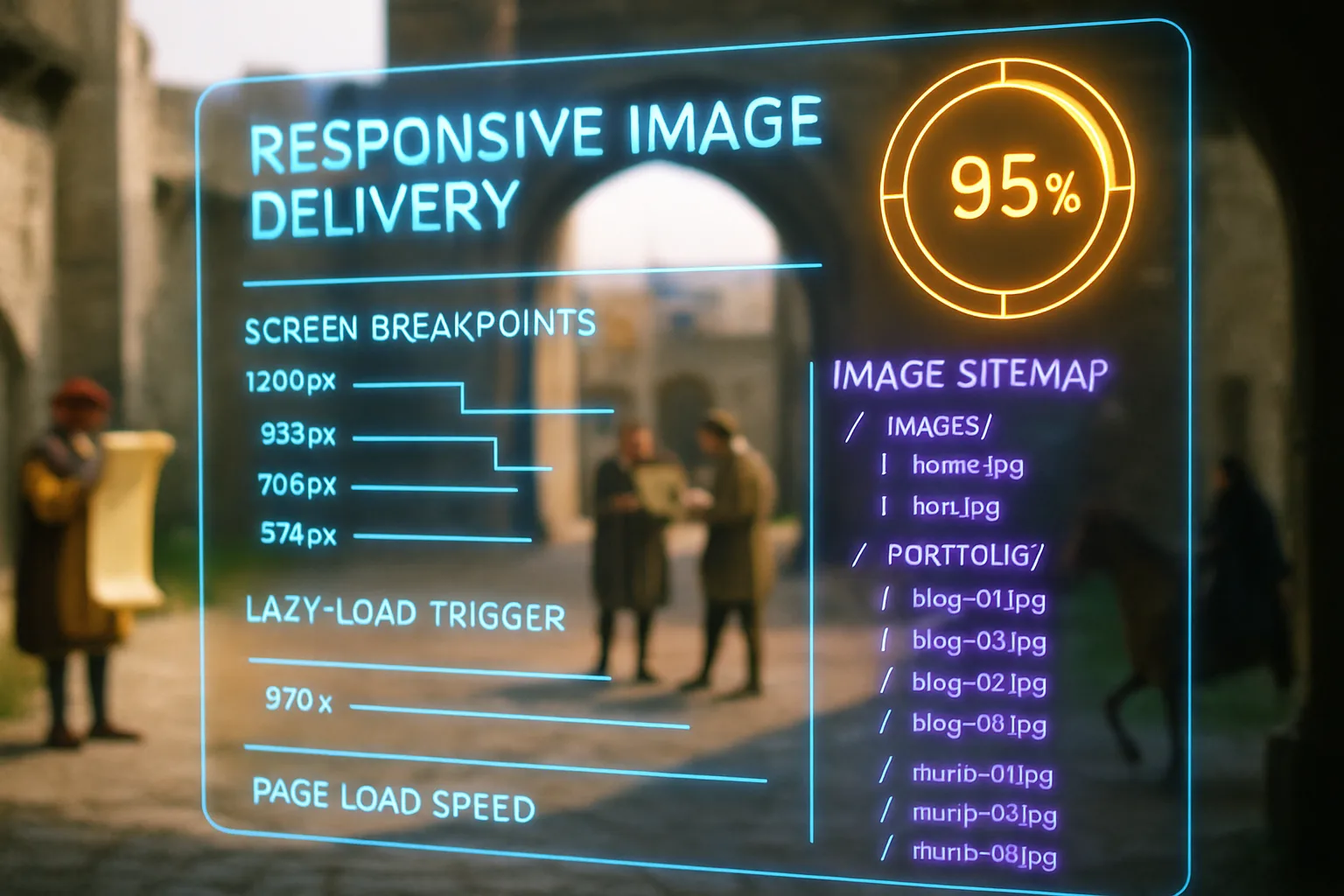
One of the most common and wasteful image mistakes is serving the same large image to every device. A desktop monitor might display an image at 1200 pixels wide. A mobile phone displays the same image at 390 pixels wide. If your website sends the 1200-pixel file to the phone, the browser downloads a file three times larger than it needs, then shrinks it. The visitor waits longer for a file they never fully use, and that wait costs you rankings.
The HTML `srcset` attribute solves this by listing multiple versions of the same image at different sizes, then letting the browser download only the version appropriate to the screen. You prepare three or four sizes of the same image, say 400, 800, and 1200 pixels wide, and the browser picks the right one automatically.
Google's PageSpeed Insights flags "properly size images" among the most frequently reported problems on websites with heavy image use. Most website platforms can generate these size variants automatically, either as a built-in feature or through a plugin. The fix doesn't require writing code manually; it requires turning a setting on.
The benefit sits at both ends: visitors on slow mobile connections get smaller files and faster pages, while visitors on large desktop screens get the full-resolution version without compromise.
Closing reflection
Images aren't decoration sitting outside the scope of SEO. They are files with load time and meaning, and search engines measure both. A photograph without alt text is invisible to Google. A four-megabyte JPEG served to a mobile browser is a performance penalty paid on every visit. Getting images right isn't a technical project requiring a developer on call. It is a set of habits: compress before upload, name files accurately, write specific alt text, choose the right format. Those habits compound across every page on your site.
You shouldn't have to guess which images are slowing your site down or costing you rankings. With Zahavah Studio, you won't.
Contact Zahavah Studio for a technical audit covering your image performance alongside every other factor affecting your page speed and search visibility.
The questions below cover what business owners most commonly ask once they realise images are part of their SEO picture.
Frequently asked questions
What is the best image format for image optimisation SEO?
WebP is the best format for most website images in 2026. It produces files roughly thirty percent smaller than JPEG at equivalent visual quality, and it supports transparency like PNG. All major browsers now support it, so compatibility is rarely a concern. For logos and icons, SVG is the better choice because it scales to any size without losing sharpness and produces tiny file sizes. AVIF is an even newer format with smaller file sizes than WebP, but browser support is still catching up, so it's worth testing rather than adopting as a default. JPEG remains acceptable for older workflows, but if your platform supports WebP, there's no reason to keep uploading JPEGs. Google indexes all common formats, but the format choice directly affects your page load time, which feeds into your Core Web Vitals score. Your Core Web Vitals score is one of the signals Google uses when deciding where your page ranks. Choosing the right format is the first step before compression does the rest of the work.
How do I write alt text without keyword stuffing?
Write alt text the way you would describe the image to someone who can't see it. If the image shows a dentist consulting with a patient in a bright surgery, your alt text might read: "dentist reviewing X-rays with a patient at a consultation". That description is specific, accurate, and naturally includes relevant terms without forcing keywords into it. Keyword stuffing happens when alt text reads like a list of search phrases rather than a description: "dentist teeth whitening dental implants Cape Town best dentist". That approach doesn't help rankings and can be treated as spam. The practical test is straightforward: if someone read your alt text aloud and another person could draw the image from it, the alt text is good. Google's image SEO documentation specifically notes alt text should be descriptive and relevant to the surrounding page content. Keep it under 125 characters, avoid "image of" at the start, and let the description do the work.
How much can image compression reduce file size without visible quality loss?
Most photographs can be compressed to between twenty and fifty percent of their original file size with no visible quality difference at typical screen sizes. Tools running lossy compression at a quality setting of seventy-five to eighty-five percent routinely achieve this. A three-megabyte JPEG can typically become a six-hundred-kilobyte WebP file looking identical on a phone, a laptop, or a large monitor. The visible threshold varies by image type: photographs with complex textures tolerate compression well, while images containing fine text or sharp geometric lines show artefacts at lower quality settings. If you're compressing images with embedded text, an infographic or a promotional banner for example, test at a higher quality setting before publishing. The principle across all image types is to compress, preview at actual display size, and reduce quality further only if the image still looks sharp. Starting at eighty percent quality and stepping down in five-percent increments is a reliable method for your workflow.
Does lazy loading stop Google from indexing my images?
No. Google's crawler, Googlebot, supports lazy loading and will index images using it, including images below the visible viewport. Google has confirmed it renders pages and can trigger lazy-loaded images during rendering. The exception to watch for is images loaded via JavaScript in a way requiring user interaction, a click or a swipe, before the image appears. Googlebot can't replicate user gestures, so images hidden behind interaction-based triggers may not be indexed. Standard lazy loading using the `loading="lazy"` HTML attribute doesn't have this limitation. If your site uses a JavaScript-heavy image gallery or a slider loading images only after a button press, it's worth testing whether Google can see those images by using the URL Inspection tool in Google Search Console. For straightforward lazy loading on standard pages, indexing isn't a concern for your site.
How does image optimisation affect website speed and SEO together?
Image optimisation improves website speed, and website speed directly affects your SEO performance. Google measures page experience signals, including how quickly the main content of a page becomes visible to a visitor. That measurement, Largest Contentful Paint, is frequently dominated by the largest photograph on the page. Reduce the file size of that photograph through compression and format choice, and you cut the time it takes for the page to feel loaded. Cut that time and you improve the Core Web Vitals score. Improve the score and you strengthen one of the signals Google considers when ranking the page. The same images slowing a page down also contribute nothing from a content perspective if they carry no alt text and have no descriptive filename. Optimising both dimensions, performance and content signals, at the same time is why image work tends to have a compounding effect on rankings rather than producing a single isolated improvement.

Yvonne van Wyk
SEO Strategist · Zahavah Studio
Yvonne van Wyk runs Zahavah Studio, a Johannesburg SEO agency focused on long-term search visibility and AI citation. Her writing covers local SEO, content strategy, analytics, and the mechanics of how search works.
Everything on this blog is written to inform and educate. It is for information only. Nothing here is professional legal, financial, or technical advice. If you are making a significant business decision, speak to a qualified professional first. Zahavah Studio works hard to keep this content accurate and current, but is not liable for decisions made based on what you read here.